How to install printer driver using Device Software Manager

How do I install printer driver using Device Software Manager?
To install printer driver using Device Software Manager, follow these steps.
Note
What is Device Software Manager?
Device Software Manager is an application that downloads and installs the appropriate Driver for Windows OS on your PC.
Device Software Manager automatically detects the applicable MFPs and Printers on your network or connected to your PC via USB, so you just simply select your MFP or Printer from the list of detected devices.
-
Download Device Software Manager from the following URL.
http://www.ricoh.com/software/dev_soft_manager/ Click [Run].

-
Confirm and accept the Web Installer license agreement and click [Install].

-
Click [Next].

-
Confirm and accept the Device Software Manager license agreement and click [Next].

-
Click [Next].

-
Check [Create a desktop icon] and click [Next].

-
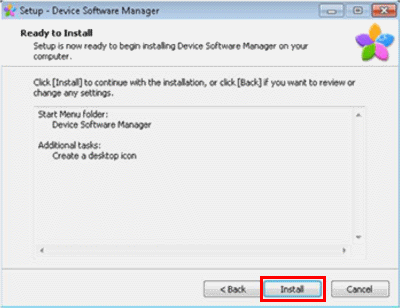
Confirm the settings and click [Install].
-
The installation begins.
Wait until the next window appears.

-
Click [Finish].

- The Device Software Manager installation is completed.
-
*To install the driver continuously, put a check in [Run Driver Installer] and click [Finish].
Please sign in to leave a comment.
Comments
0 comments